 Jyutping
Jyutping
Jyutping
brew install --cask jyutping
After installation, log out and log back in, or restart your computer, so the input method can take effect.
Note: logging out closes all running apps.
After installation and after logging out and back in, if Jyutping is not available, try adding it manually:
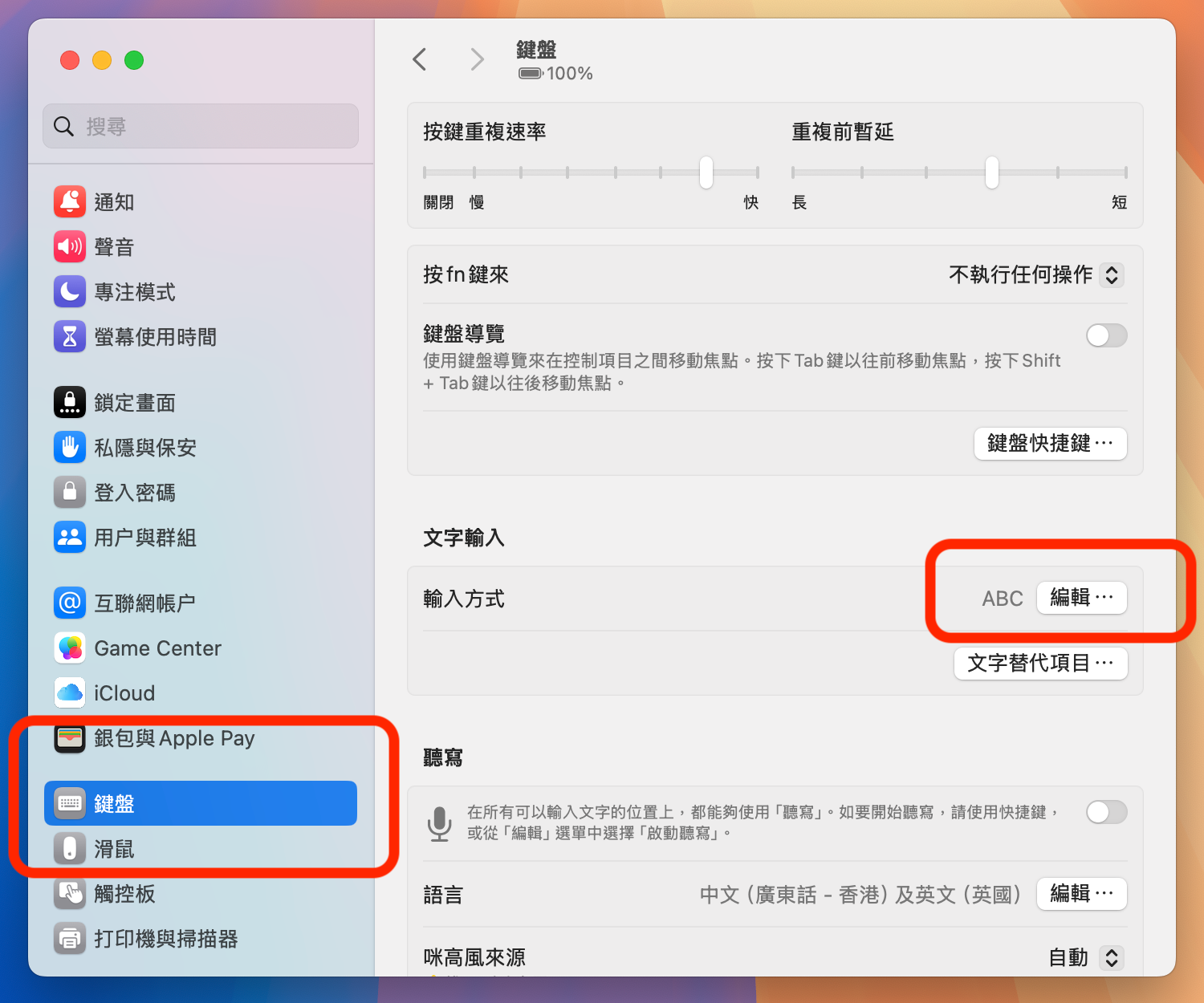
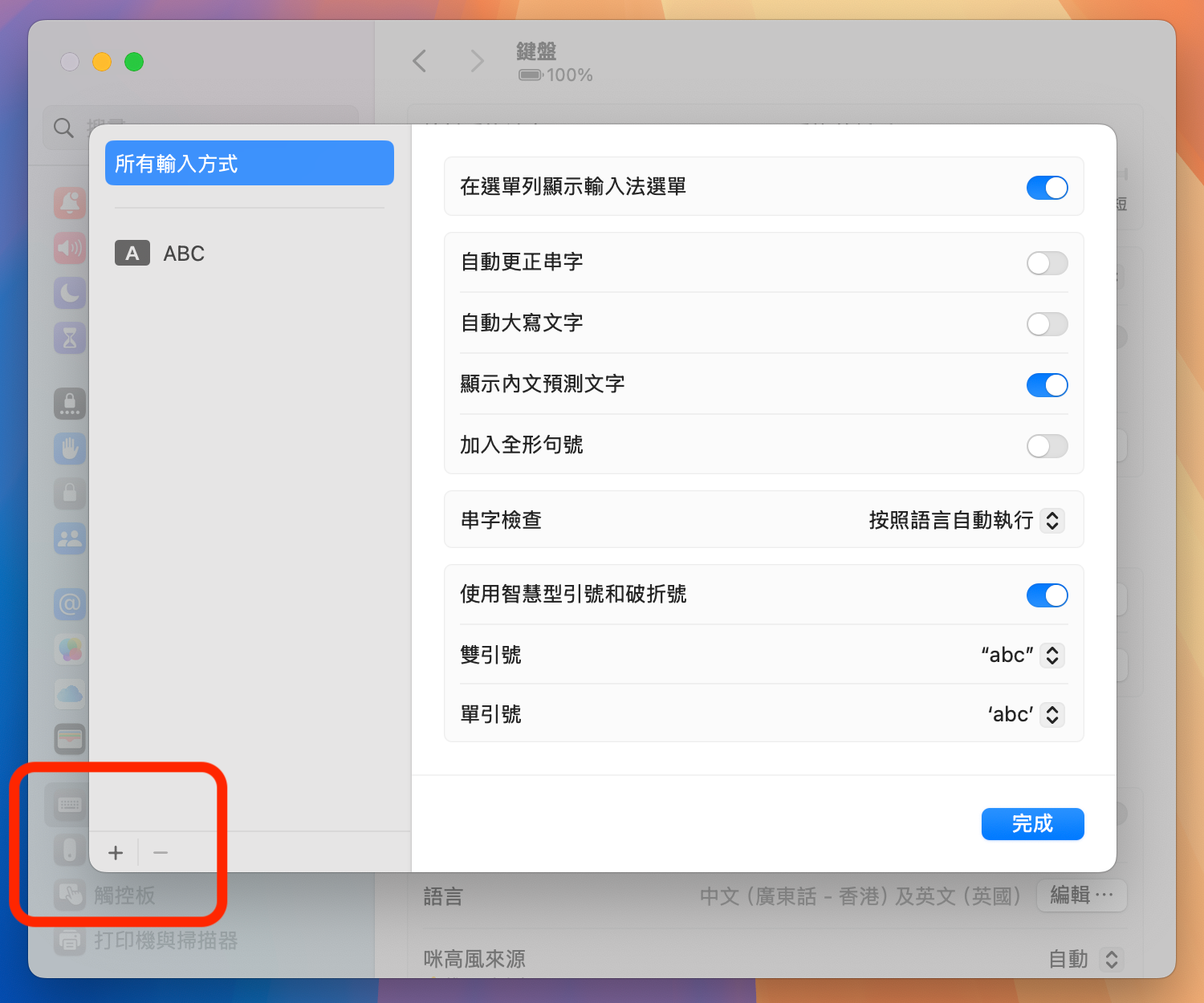
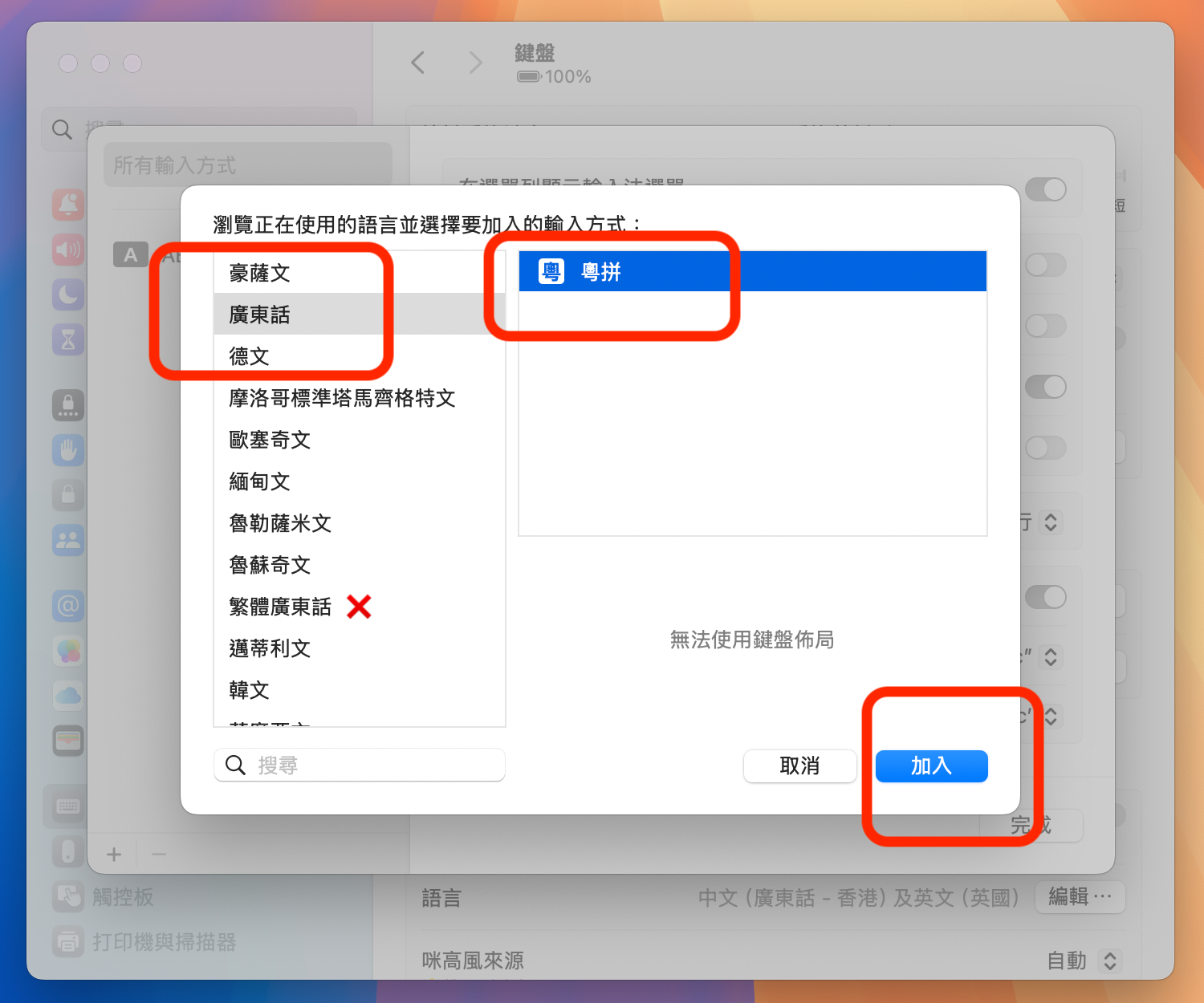
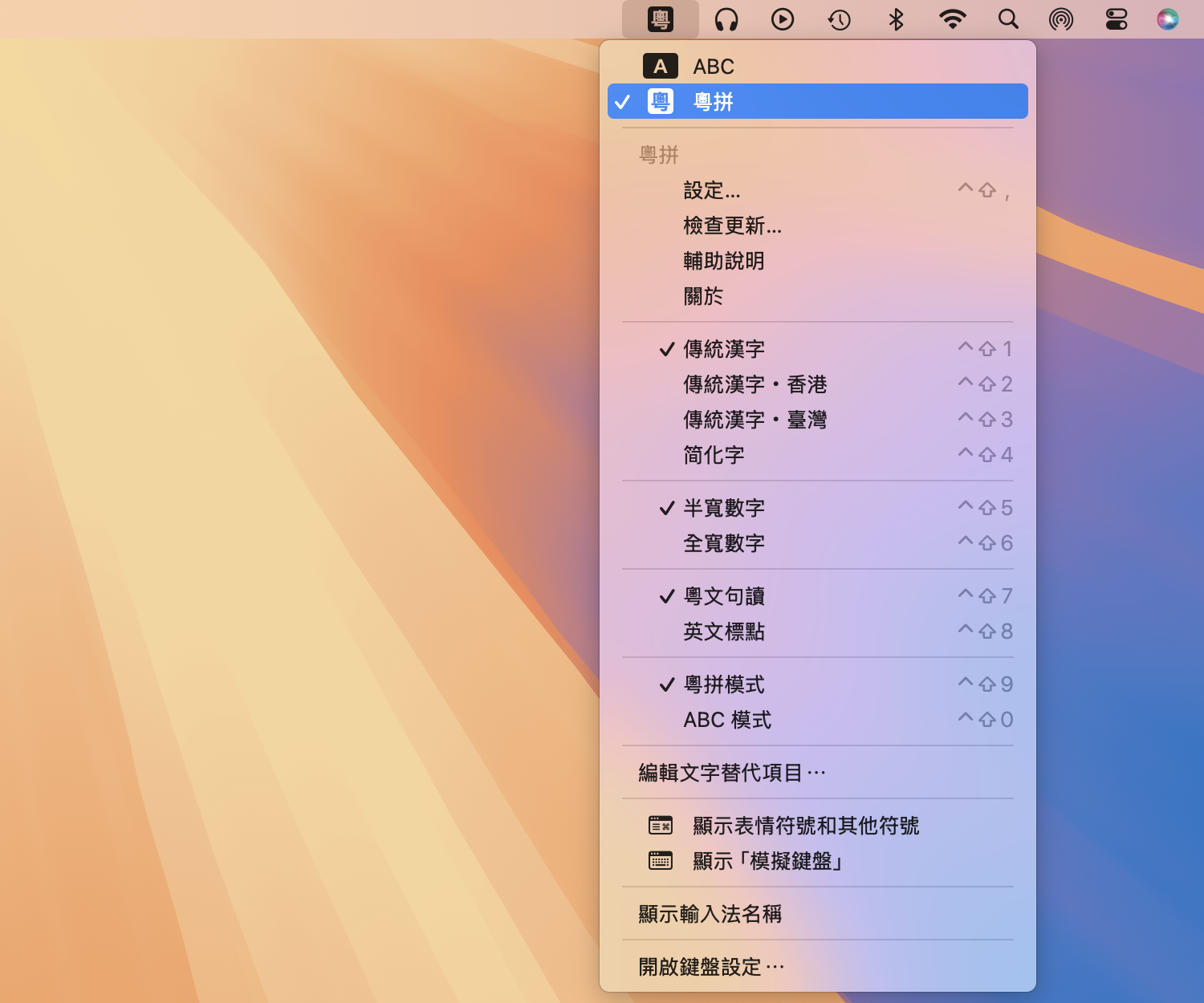
brew upgrade --cask jyutping
After updating, it is also best to log out and log back in, or restart your computer, so the input method can take effect.
Note: logging out closes all running apps.
To uninstall the input method, use one of the following two commands.
1. Uninstall the input method and delete related data:
brew uninstall --zap --cask jyutping2. Uninstall the input method and keep related data:
brew uninstall --cask jyutping
After uninstalling, also log out and log back in, or restart your computer.
Note: logging out closes all running apps.