 Jyutping
Jyutping
Jyutping

Using Homebrew? You can install Jyutping Input Method for macOS with Homebrew.
Download: Jyutping-v0.85.0-Mac.pkg
Compatibility: macOS 13 Ventura or later
CPU support: Apple Silicon and Intel x86_64
Latest release: October 16, 2026
21736057 bytes
9d27e3a25e7000b2e970752714526b17d69eb5a23cbb39d6f5902019d977aebaInstallation steps:
After installation and after logging out and back in, if Jyutping is not available, try adding it manually:
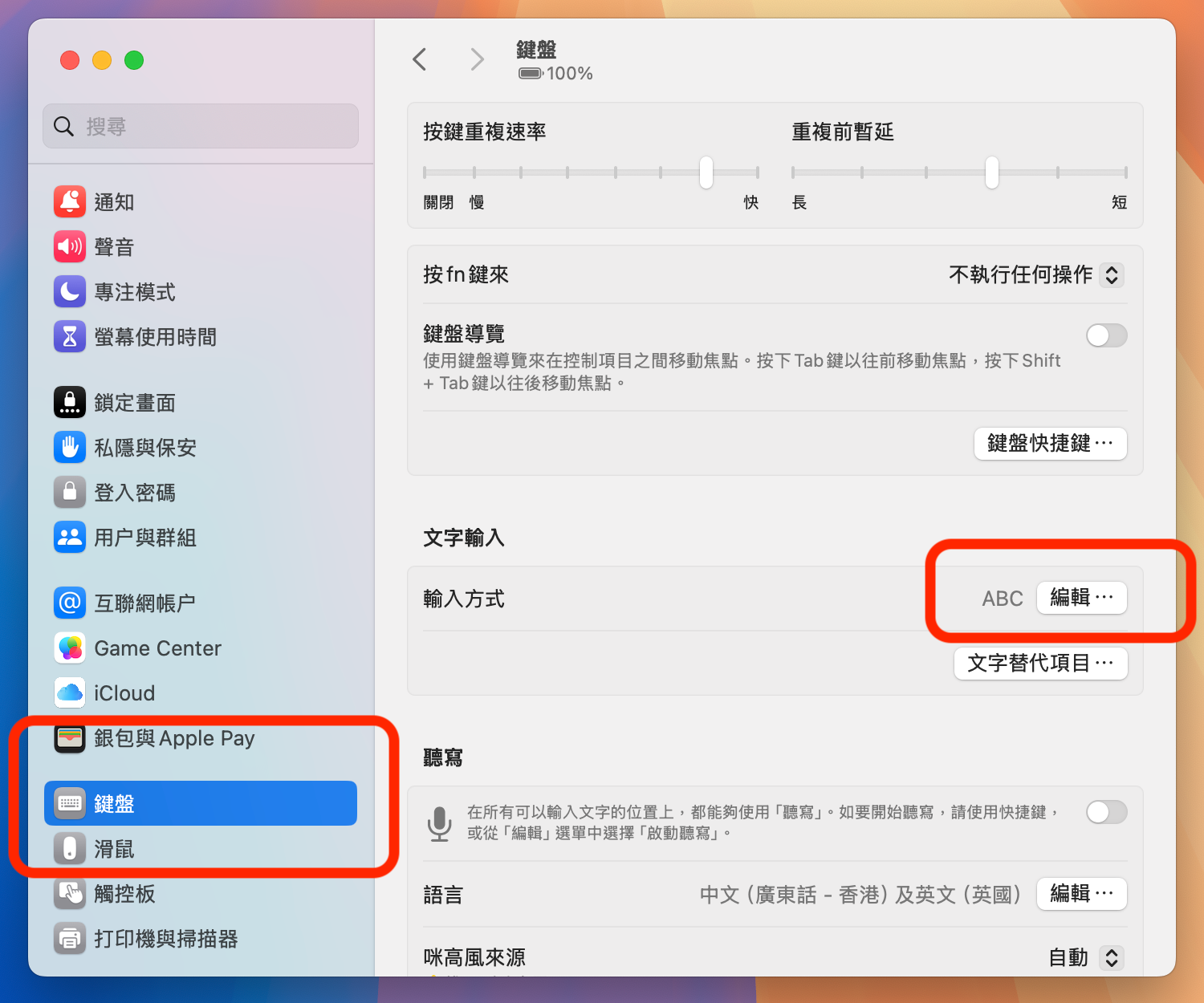
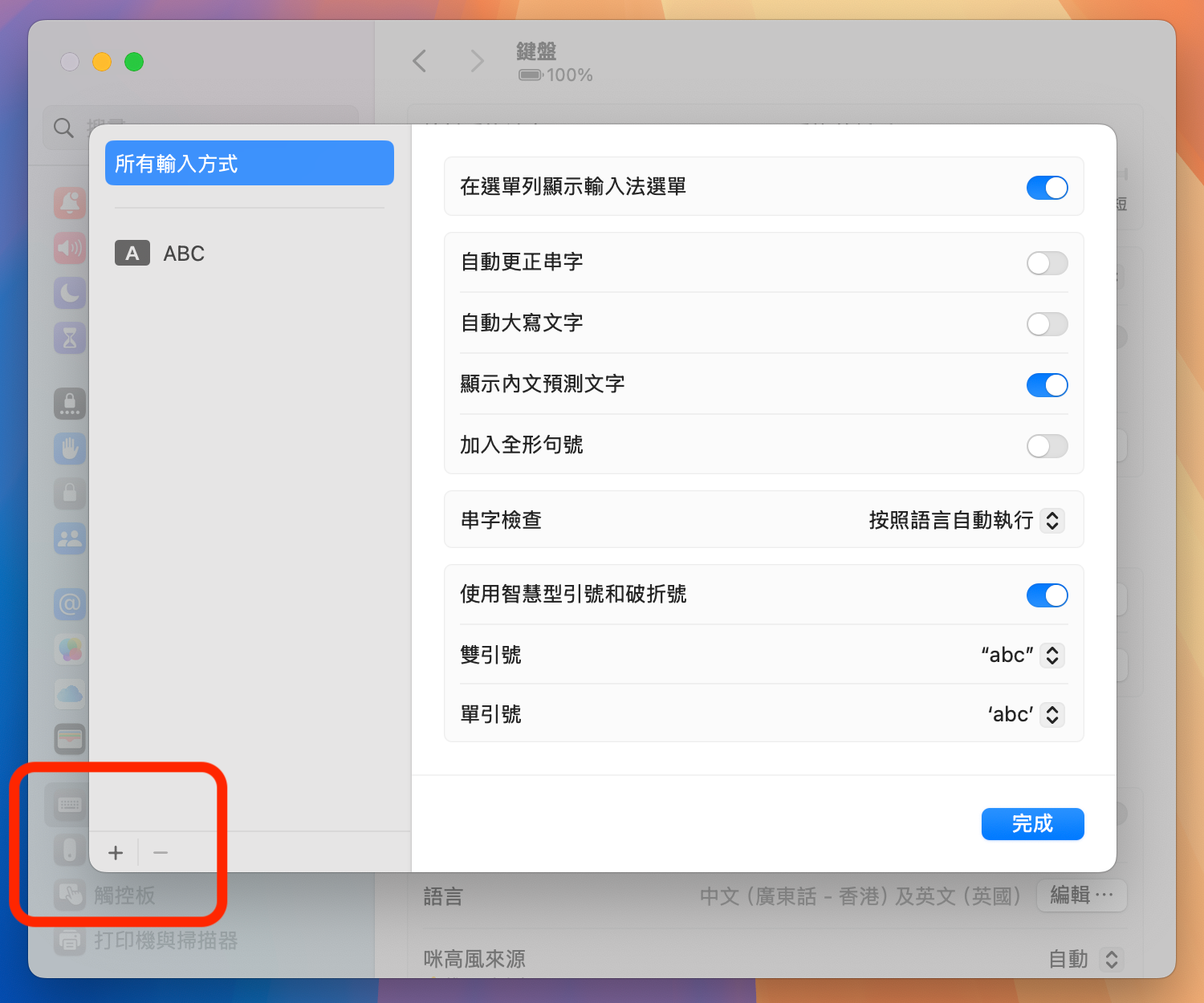
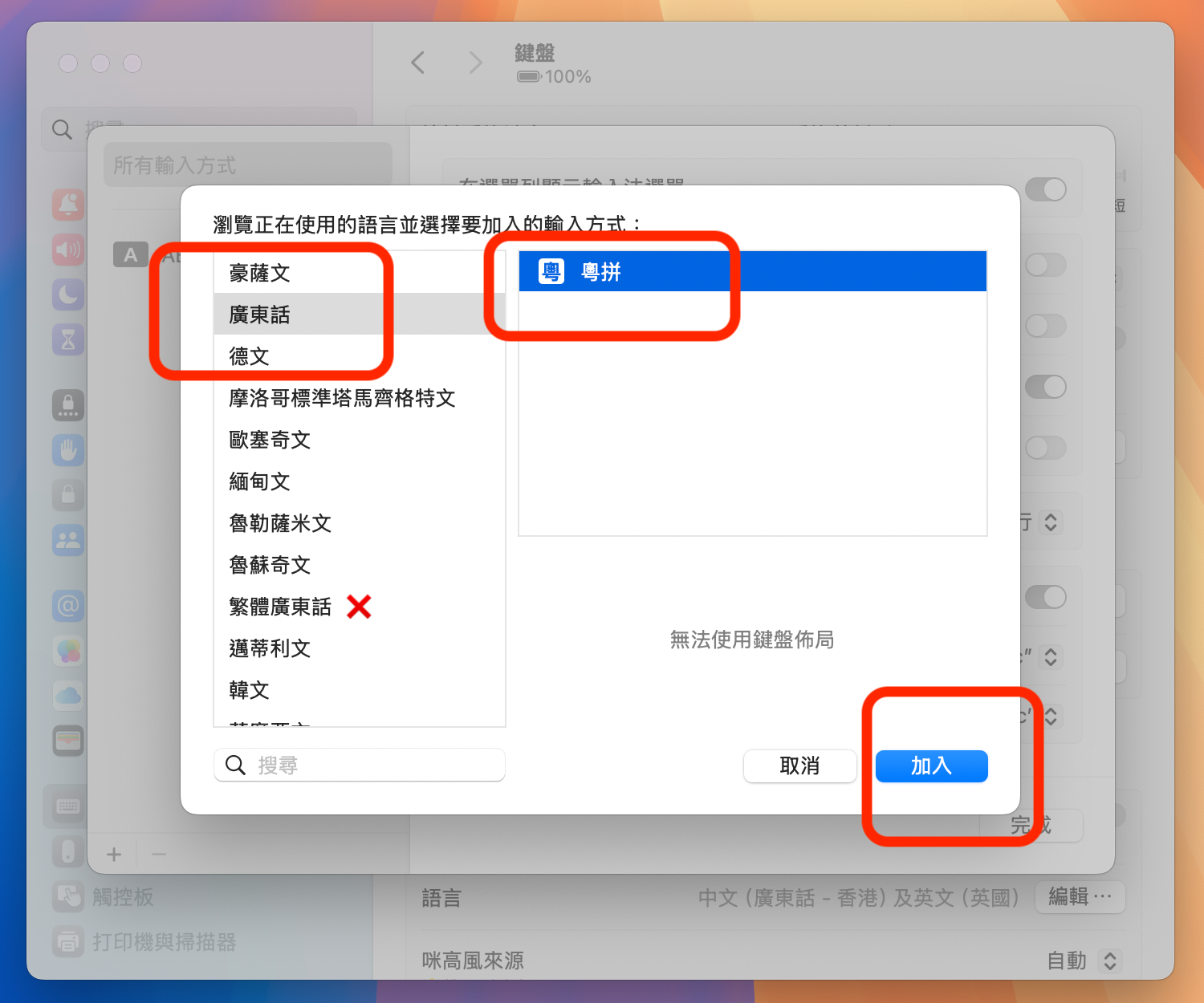
Because macOS manages input methods in a fairly complex way, the built-in “Check for Updates / Automatic Updates” feature may fail.
We recommend downloading and installing the latest version from this website, or installing/updating Jyutping Input Method for macOS with Homebrew.
See also: FAQ
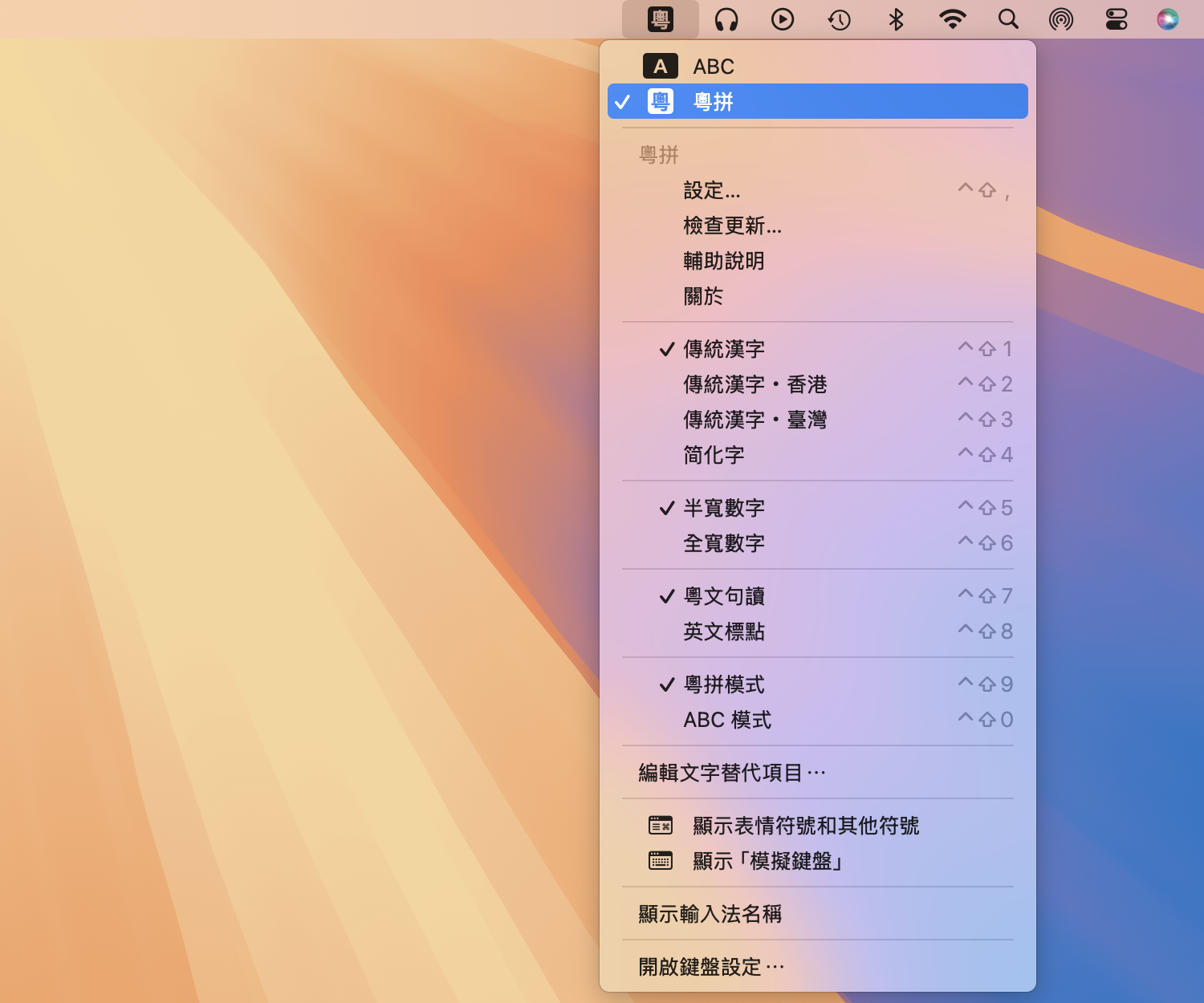
While using the input method, press Control ⌃ + Shift ⇧ + ` (below the esc key). An options panel will appear where you can choose simplified Chinese, punctuation style, and other options.
See also: How to uninstall Jyutping Input Method for macOS
Telegram Group: @jyutping
QQ Group: 293148593


Developing input methods for multiple platforms takes a lot of time and effort.
Your support helps make them better and brings more features!